
You want to convert your FRAPS or MSI Burner footage so that it’s not HUGE to and doesn’t take two million hours to upload to Youtube?
Well, here’s a relatively easy and free way to achieve all this with opensource (FREE) Software that compresses your video amazingly well, better than most infact.
First off download AnyVideoConverter, go to the grrr download page and download the free software, it’s only 23.82Mb and it’s hosted locally.
*The software has built in video codecs, so you will not need to install anything else to start converting.
Install the software and Launch it.
First Off, we’re going to set a couple of options to get what we want from the program, feel free to change these to what you prefer.
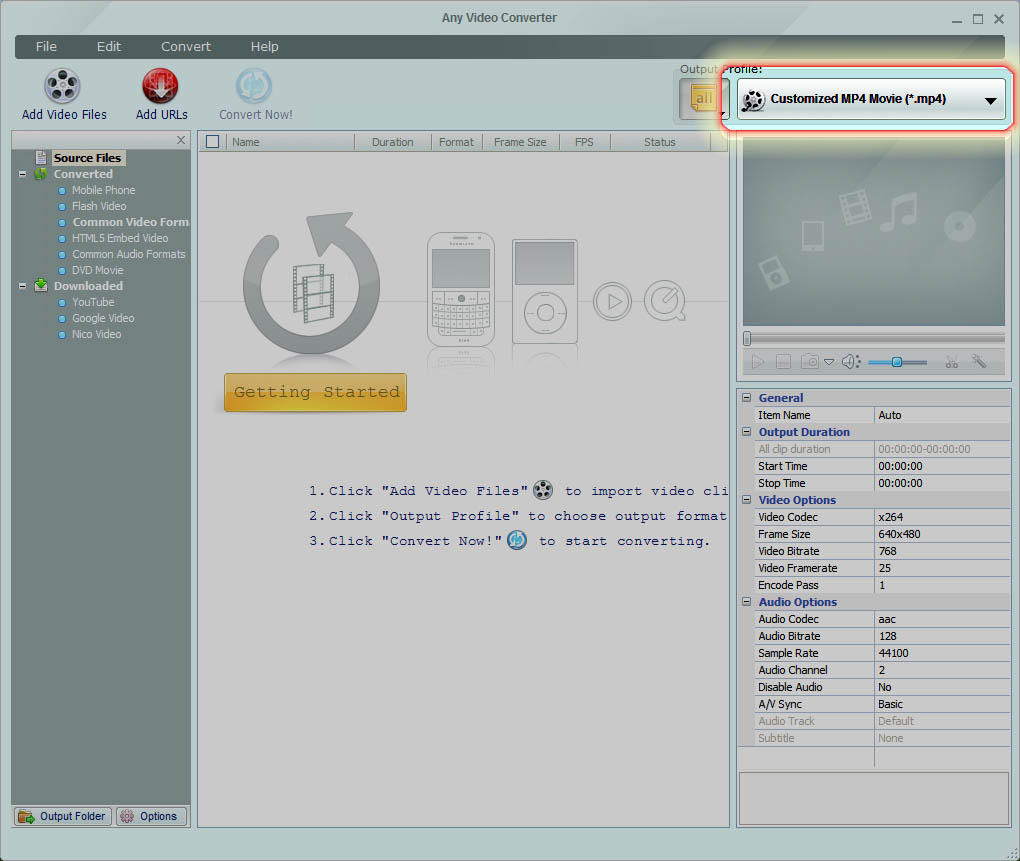
First Off, Choose the Customized MP4 Video – this option does an amazing job of compressing video to the x264 codec, which is super high compression with very little loss, it will output to the mp4 format which is an apple created video file container format. Bottom line, this is a good one.
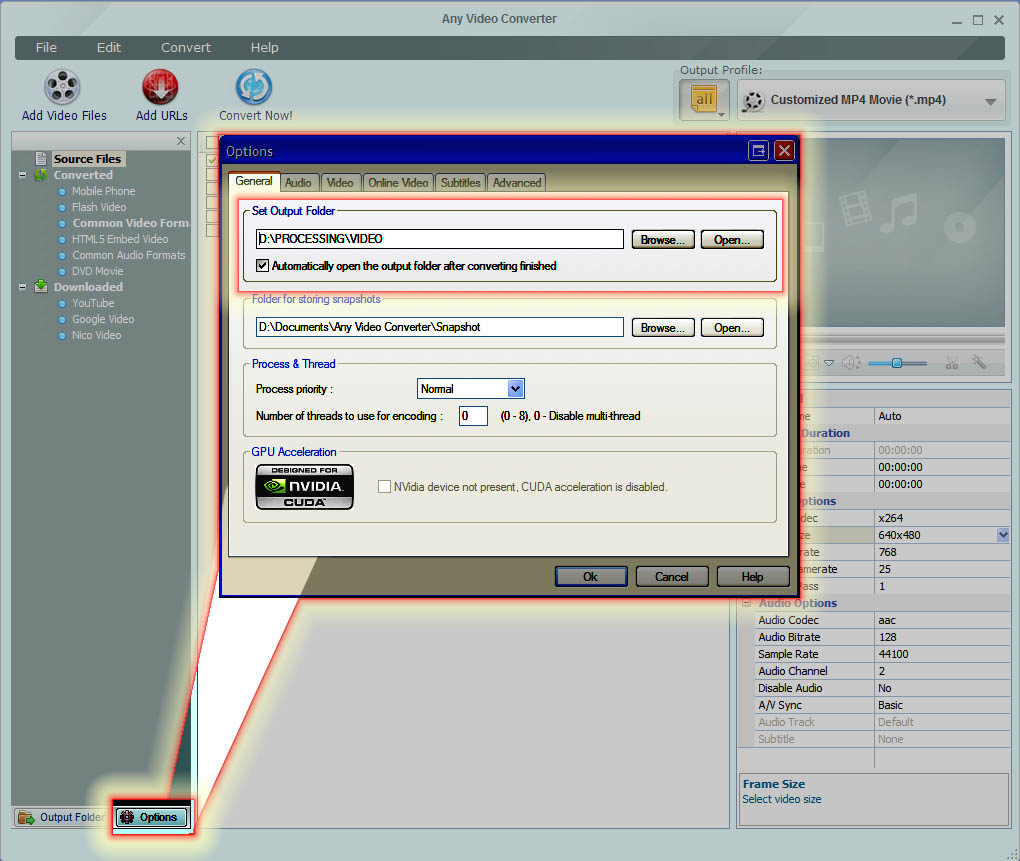
Next up, I want to set where exactly my final videos will be outputted to when I convert them, in my illustration you can see I’ve set it to my D: Drive in a folder called Video within a folder processing. Feel free to create a folder or set output to a folder of your choosing. This will be the destination where your final file(s) will, BY DEFAULT, be saved when you click convert.
*Note; if you have a nVidia card, you SHOULD tick the CUDA Acceleration radio box if it’s not ticked already under GPU acceleration...this speeds up the conversion process by at least 10 times as in normal conversion that takes 10minutes will take only 1minute using CUDA.... WELL WORTH the click.
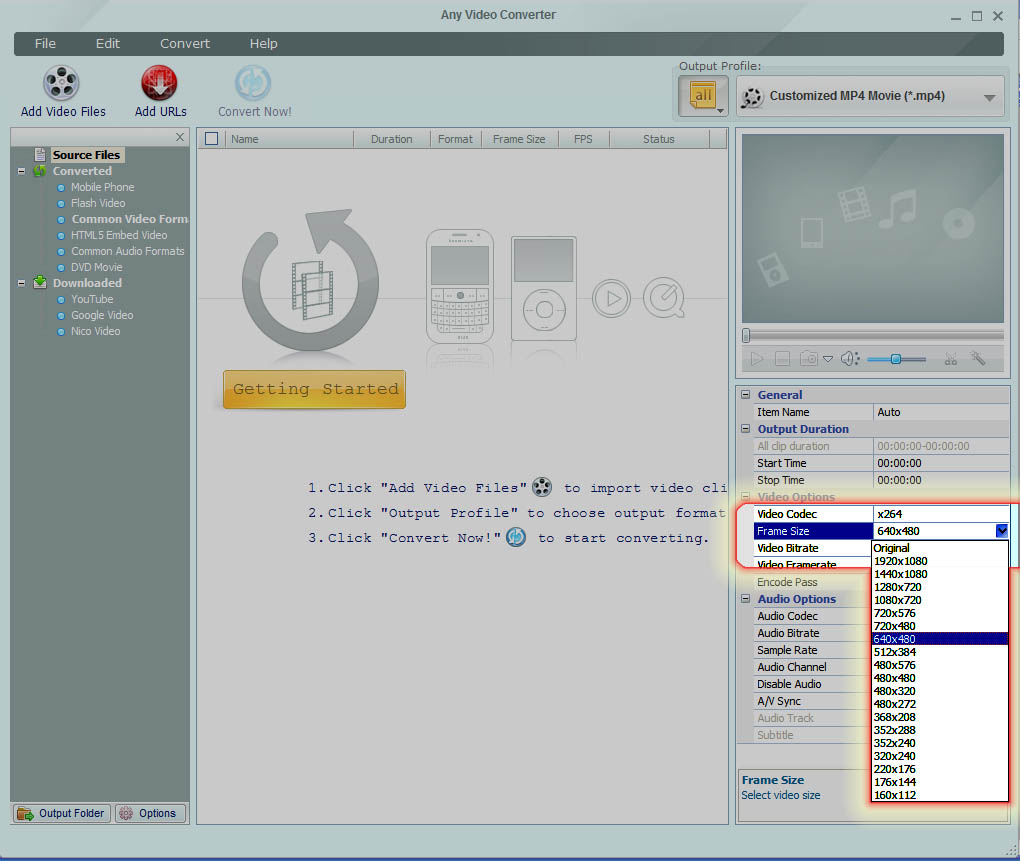
Next up, you can choose whatever output video size that you want for the final video, I’d suggest setting it to 640x480 for youtube, 480 being the important one
- well thats not strictly true, I've got widescreen monitor (resolution of 1920x1080), Capturing Game footage will generally speaking be on widescreen LCD monitors too.
Here are some Resolutions and Settings I'd use:
1920 x 1080 (1080p Full HD Monitor Aspect 16:9) set to 854x480
1680 x 1050 (quasi HD Ready Monitor Aspect 16:10) set to 768x480
1600 x 900 (quasi HD Ready Monitor Aspect 16:9) set to 854x480
1440 x 900 (quasi HD Ready Monitor Aspect 16:10) set to 768x480
1366 x 768 (quasi HD Ready Monitor Aspect 16:9) set to 854x480
1280 x 1024 (quasi HD Ready Monitor Aspect 4:3) set to 600x480
– that will mean the upload will play the standard 320p version by default, but have an option for the higher-res 480p for those who want more detail. You can also set the [ENCODE PASS] to 2, this improves the video quality by doing an analysis of the video before converting, while it takes longer it does improve overall quality dramatically, so I’d recommend it, especially if you are using CUDA acceleration.
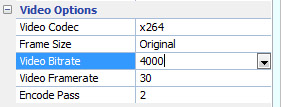
EDIT: ANOTHER QUICK NOTE* I just noticed the Default (after installing fresh on another machine) bitrate is actually 700 - this is way too low for decent video at higher resolutions.
*Please make sure you set yours to 4000!!
**Plus I'd also recommend frame rate of 30 as opposed to the default of 25.
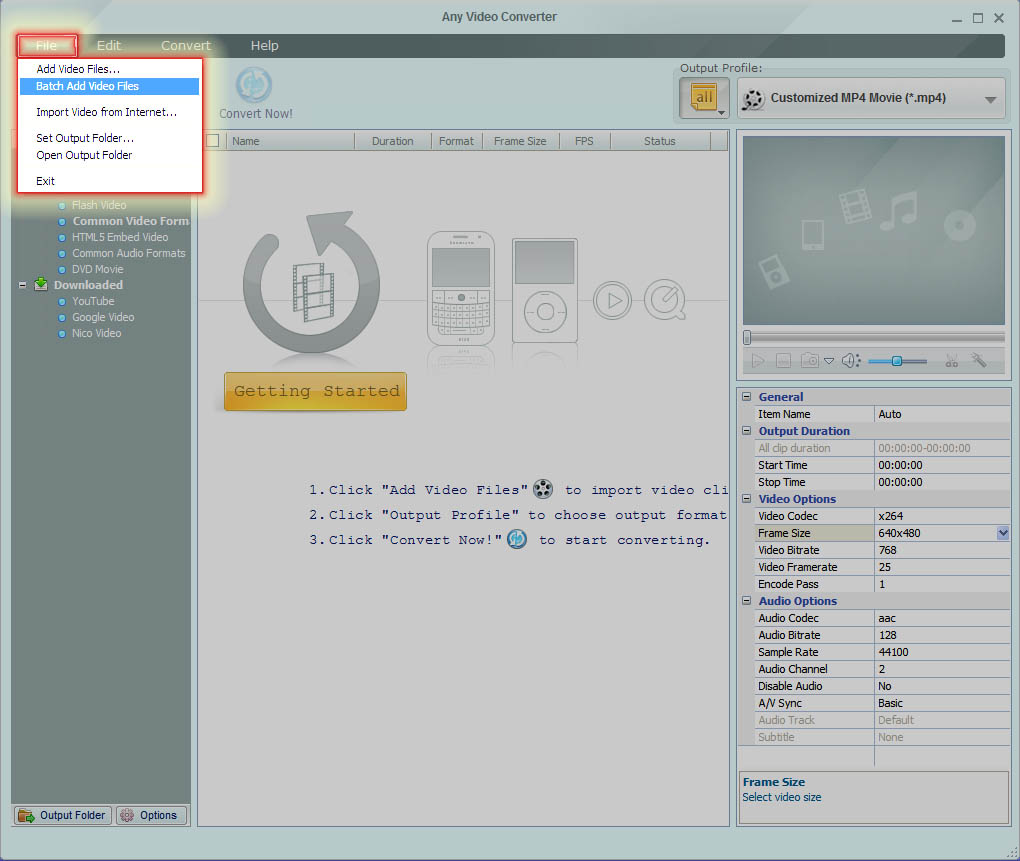
Now since FRAPS captures (or whatever capture tool you are using) generally capture to HUGE Files with multiple files making up the capture of the scene you want to put in your video, you will want to select Batch add videos. This will let you select an entire Folder to convert rather than selecting individual files. This requires that you do a bit of House-work to move files around, but if you sort by DATE within your windows explorer, this shouldn’t be a huge task, simply move the files you want to convert to the appropriate folder so that batch conversion is simple.
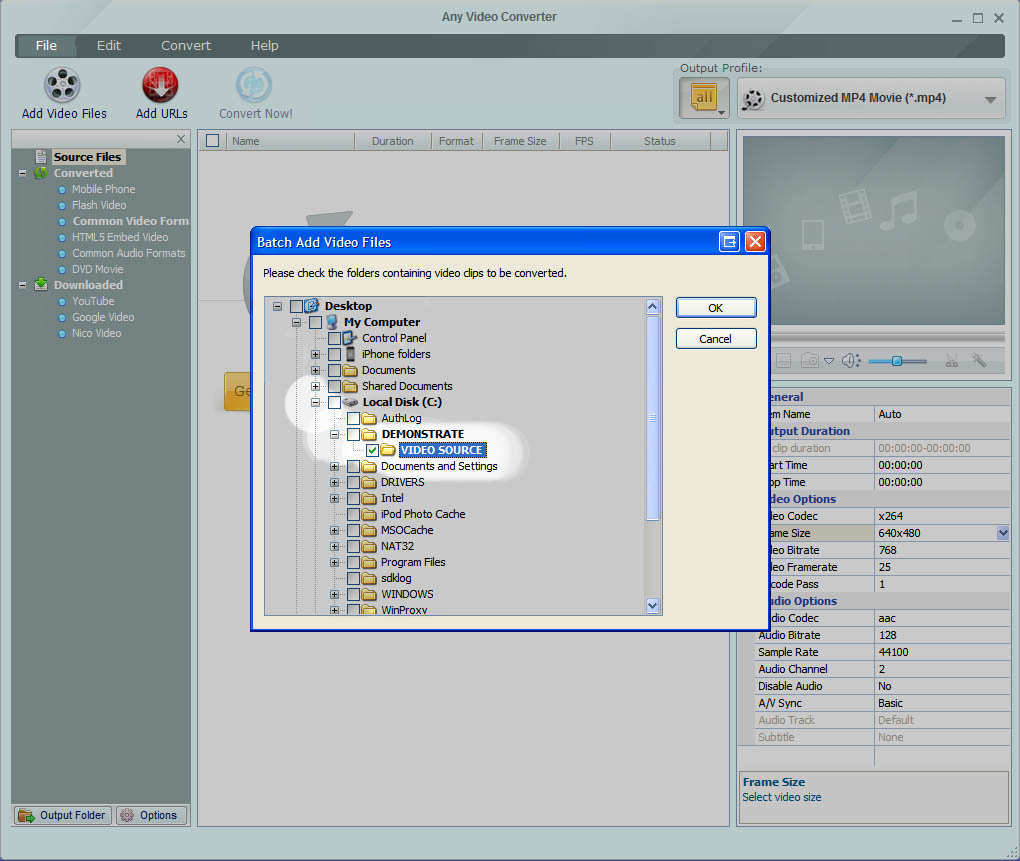
You can see me selecting a folder for batch import/selection of the files I want to convert. Alternatively just chose the first option of [Add Video Files] and individually add files or CTRL-Click to add multiple files. The Choice is yours.
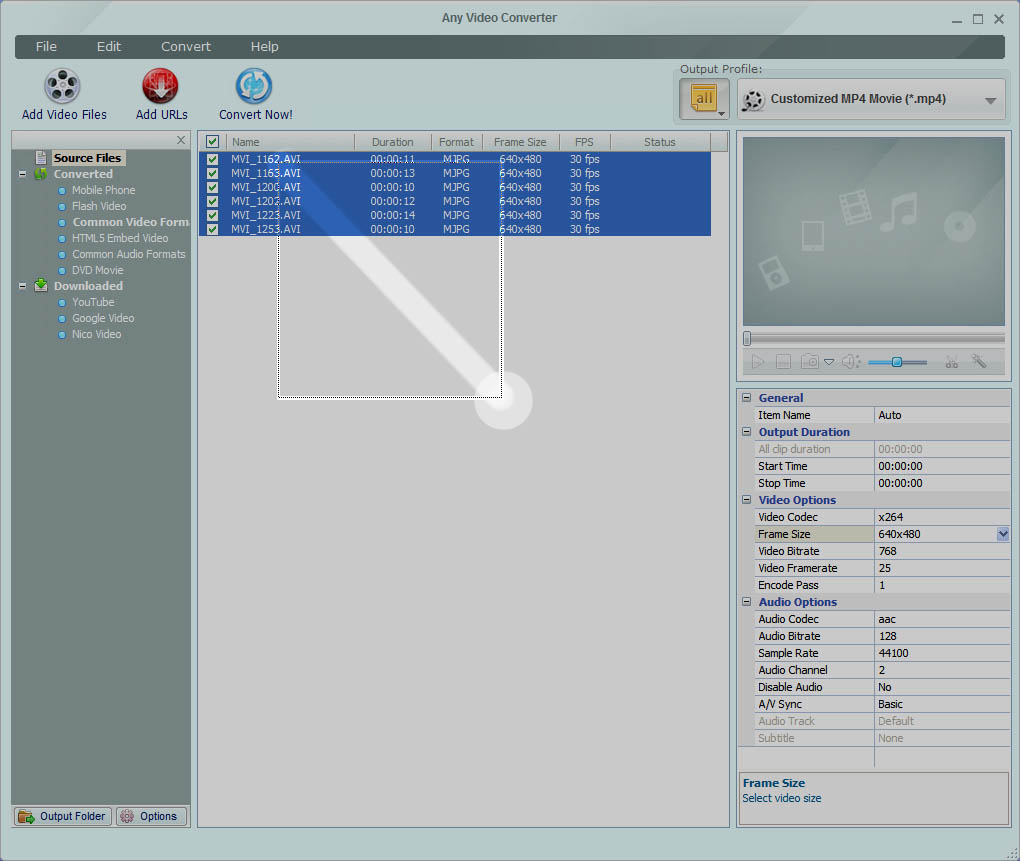
In my case i want ALL of these file to be merged into ONE file when converting, I click and drag (Alternatively you can CTRL-click or SHIFT-select etc.) my mouse over all the files here, then RIGHT-CLICK to bring up the menu so I can find the merge function.
In some cases you may have imported more clips than what you want in the final merged clip, this would be when you simply don’t select them, unselect with CTRL or basically simply CTRL Select the ones you want in the final merged video.
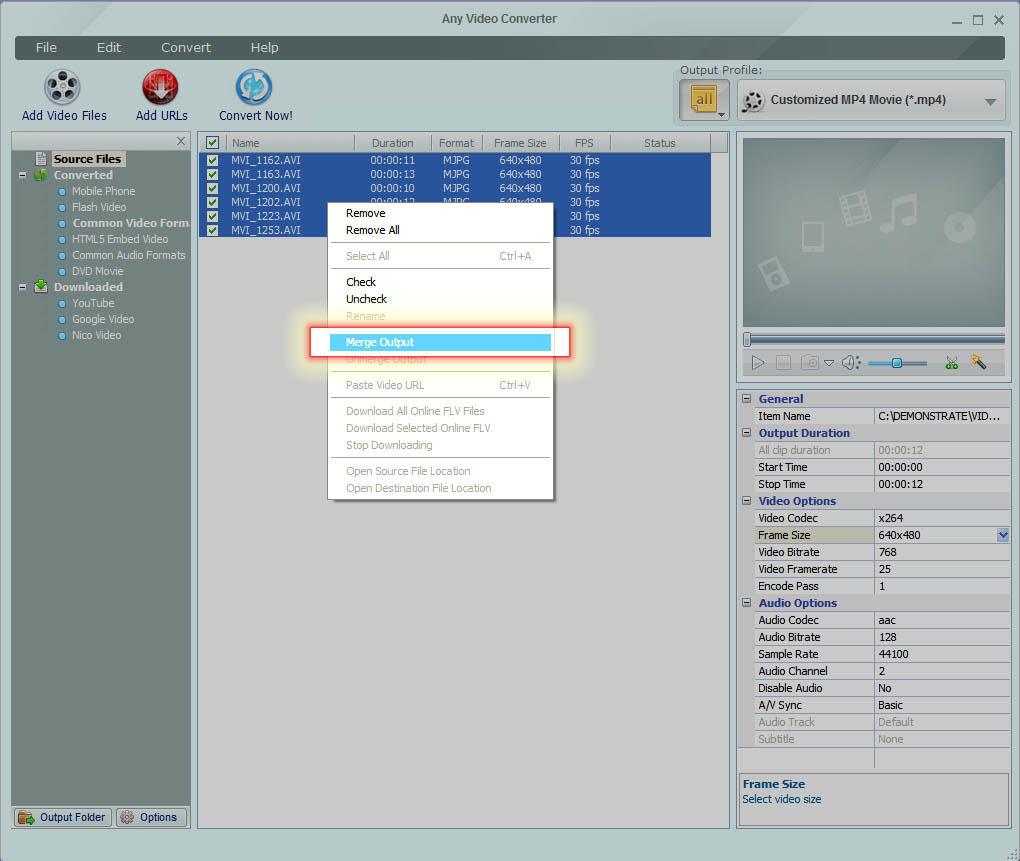
After RIGHT-Clicking on my selection, you can see I have chosen Merge Output, this will make sure that all the selected files are merged into one final file when I click convert.
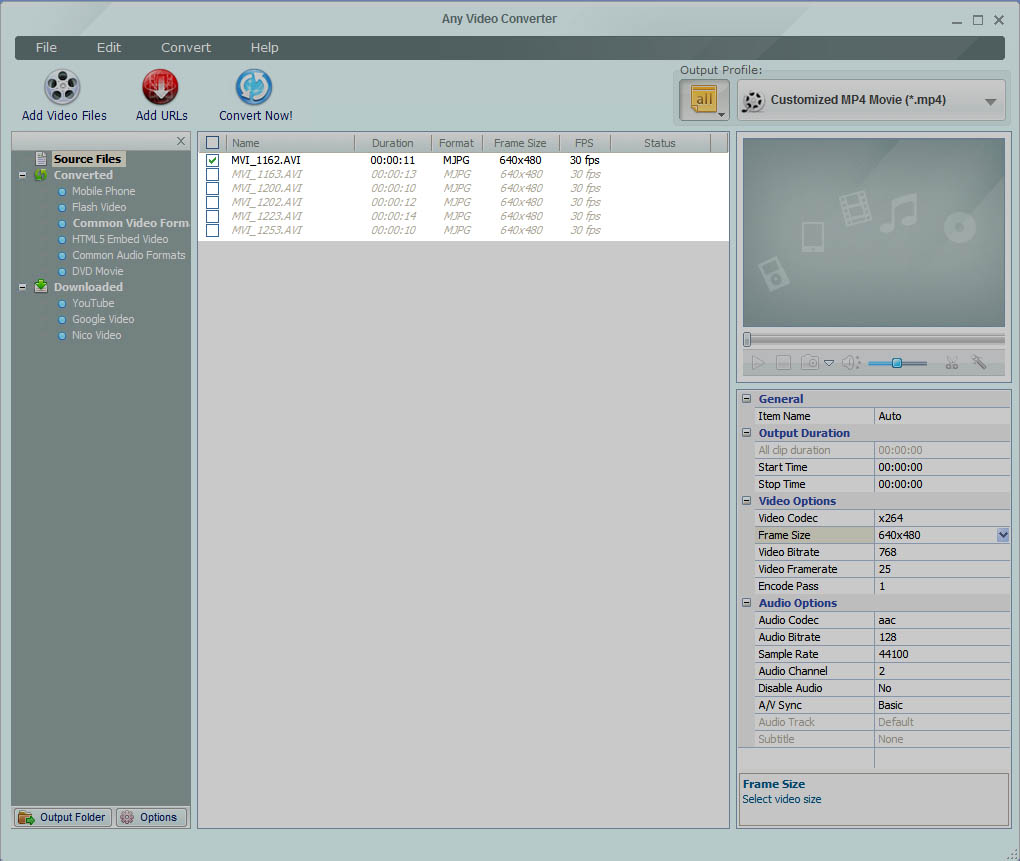
You know when files are being merged into one file from a visual cue, see above where only the 1st file is selected and the reset greyed out, this is to illustrate the stack of files to be merged.
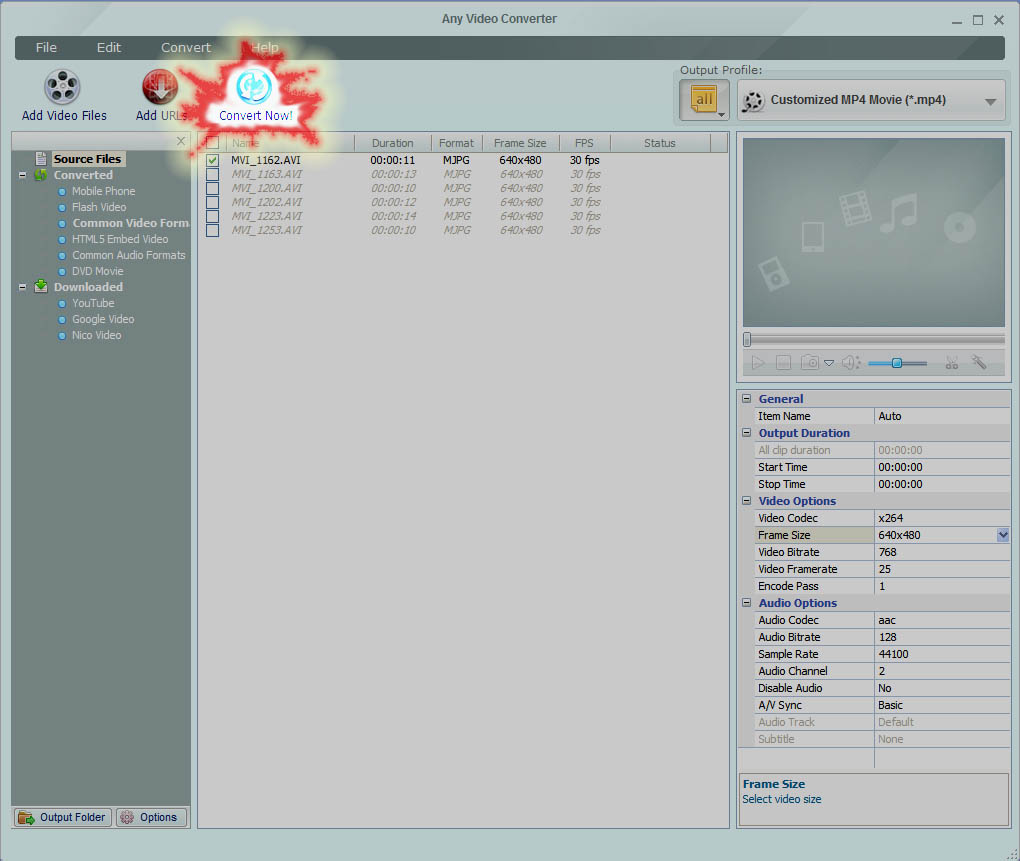
Now that we’ve set everything that we want, click CONVERT NOW ! All you will see is a status bar thing at the bottom of the screen, nothing fancy here.
At then end of the conversion you will be prompted to open your output folder or purchase the pro version of the software. . . it’s your choice.
Thats it. You will now be shocked and amazed at the small file size. Use it to upload to Youtube and pat yourself on the back for a Job well done!
 [/td]
[/td]


